Appearance
Cut, Copy, Paste
Use cut, copy, paste to duplicate objects or a selection of voxels.
How to Cut, Copy, Paste
Edit > Cutremoves an object or selection of voxels and copies it to the internal clipboard.Edit > Copycopies the object or selection of voxels to the internal clipboard without removing the element.Edit > Pasteadds the copied object or selection to a Matrix, Compound or Model. Paste behaves differently depending on the type of object that is copied and pasted into (see Paste Behaviors).
These commands only work internally inside of Qubicle, so it is impossible to copy a selection from Qubicle and paste it into an external program.
How to Paste OS Clipboard
To paste an externally copied image file into Qubicle:
- Choose
Edit > Paste Windows Clipboardon Windows orEdit > Paste macOS Clipboardon macOS
The normal paste function only works internally in Qubicle, so to add an externally copied image, use these commands.
Paste Behaviors
Depending on the type of object copied and the view mode, the paste operation will work differently:
Pasting a selection of voxels inside the matrix editor adds them at the middle of the matrix. The voxels start out detached, so they can be moved freely without interfering with overlapping voxels, until the operation is finalized with Enter or by clicking outside of the object.
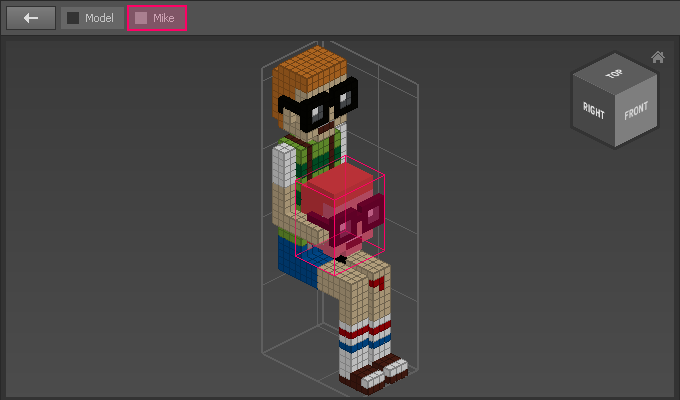
Pasting a selection of voxels in the Model View or inside a Compound will add the voxels as a unique object in a new matrix. In this case, it is similar to the Split Off function.
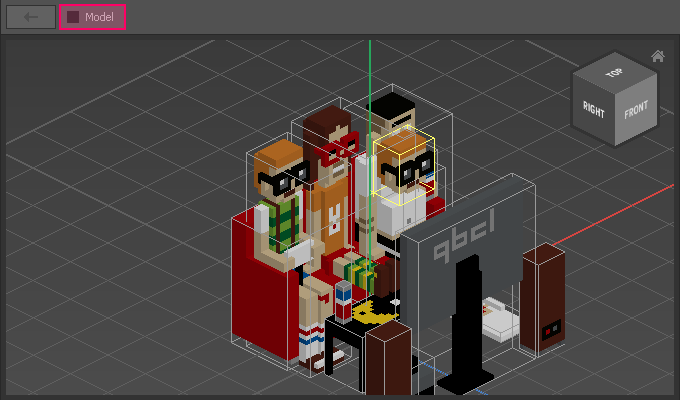
Objects pasted in the Model View are added at their original position. They can also be pasted inside of Compounds.
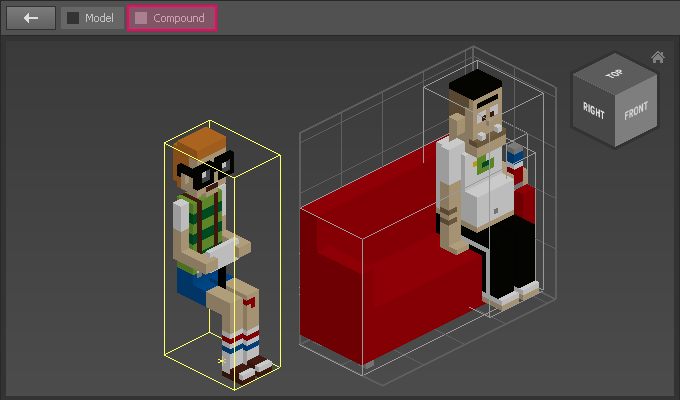
Objects pasted in the Matrix Editor are pasted as detached voxels in the center of the matrix.
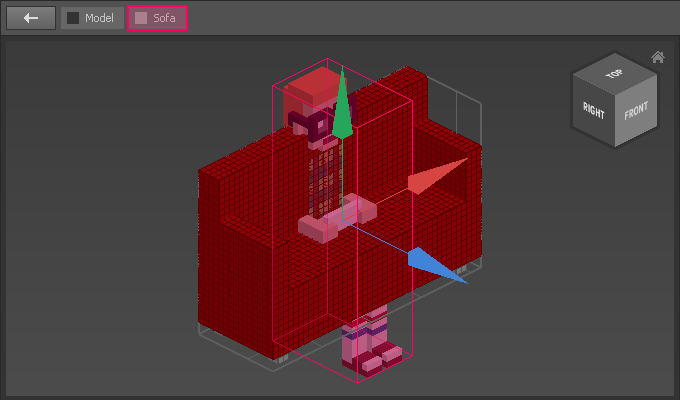
Compounds can be copied in the Model View or other Compounds. They retain their hierarchy.
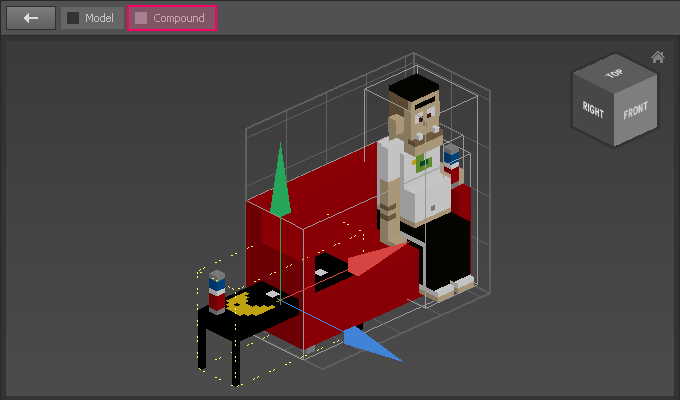
Compounds can not be pasted inside a Matrix. In this case, it is preferable to merge the compound before copying and pasting the object into the Matrix.